As a Power BI Report Server Administrator, it is crucial to monitor the performance of your report server and keep track of your subscriptions and schedule refreshes. Inefficient utilization of report server capacity is a common issue, for instance, when there are specific periods of high server load and others with minimal activity. This can be a caused by schedule refreshes and subscriptions set up to be triggered all at the same time. This article explores how you can make use of a Power BI report, the job agent, and Power BI Report Server’s database table to visualize potential bottlenecks.
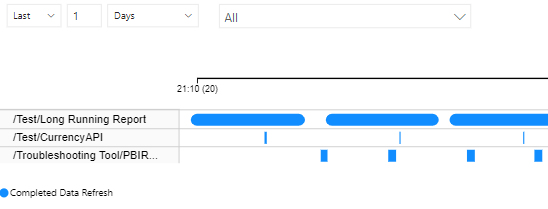
Thanks to Frederik Bogaerts, making me initially aware of this Power BI report and thanks to a blog post from Mattias de Smet, I was able to modify this Power BI report for monitoring not only the SQL Server Agent but also on a separate tab the Power BI Report Server. The main addition to Mattias’ report is that the main objective of my report is instead of monitoring only the SQL Server Agent I wanted to monitor the Power BI Report Server’s schedule refreshes and subscriptions as well. Nevertheless the pbix file and detailed description provided by Mattias was particularly helpful in getting started.
Inspiration for this report also came from Ganttchart’ paginated report blog post about “Visualizing Power BI Report Server Refresh Schedule”, which is particular good if the environment to monitor is a SQL Server Reporting Services and not a Power BI Report Server. This is due to the fact that Pedro’s WIP solution is a paginated report. Just like Pedro’s paginated report, also this solution is based on the dbo.SubscriptionHistory table.
Theoretically the SQL Server Agent could also be used to monitor the report server, with the exception that the report server’s jobs in the SQL Agent have a GUID, which need to matched with the report server’s database tables. Furthermore in my repro, the SQL agent cleared the history when modifying or deleting the schedule refreshes and the duration in seconds of the jobs were not captured.
This solution is work in progress and needs to be taken further for sure, not only by monitoring all jobs, PBIRS, SSAS, SSIS, but even more importantly with further analysis of the Power BI Report Server’s database tables, such as the ExecutionLog3 View. One additional requirement is that if you want to see jobs of all services in the report, you would need to run those on the same machine. If this is not the case, like in many environment, an ETL pipeline would need to be set up to consolidate the different services. I would be interested to see if someone can take this approach further.
There are quite a few further checks and Power BI Report Server Monitoring which could be included in this report.
Instructions How to Set Up the Report
Step 1: Download and Open the Power BI Desktop file on your Power BI Report Server and authenticate against your SQL Server.
Download and open the following .pbix file here: https://github.com/KornAlexander/PBI-Tools/blob/main/PBIRS/PBIRS%20Job%20Monitoring.pbix
Make sure to open the report on the report server machine, since it is using localhost to connect to your database.
Step 2: in Power Query –> Change “ReportServer” to match your database name
Go into PowerQuery and modify the SQL Statments to match the name of your report server database name. In my case the name is “Report Server”, you might have a different name of your database. Once you have changed this you should be done and good to go.
Optional: Step 3: Creating a SubscriptionsAndScheduleRefreshes VIEW Used in the following script and for PBIRS Monitoring
The following steps are optional and only need to be applied, in case you want to see your Power BI Report Server jobs from the SQL agent and not from the database, as well as SSAS or SSIS jobs potentially on your SQL Server Agent.
In this step, we will be creating a view called “SubscriptionsAndScheduleRefreshes” in the “ReportServer” database. This view will be used by the subsequent view “Job_Step_History_Analysis” and therefore needs to be created first.
/*CREATE Or ALTER View SubscriptionsAndScheduleRefreshes
This view selects the ReportID, ScheduleID as JobName, and Path columns from the dbo.ReportSchedule, dbo.Schedule, and dbo.[Catalog] tables.
The script uses the WITH (NOLOCK) hint which allows the query to read data from tables that are being used by other queries.
The script joins the tables on the ScheduleID, and ReportID columns respectively.*/

USE [ReportServer] --change this line to the report server database name
GO
Create OR ALTER View [SubscriptionsAndScheduleRefreshes]
AS
SELECT rs.ReportID
,REPLACE(REPLACE(s.ScheduleID , '{', ''), '}', '') COLLATE SQL_Latin1_General_CP1_CI_AS AS JobName
,cat.[Path]
FROM dbo.ReportSchedule rs WITH (NOLOCK)
INNER JOIN dbo.Schedule s WITH (NOLOCK) ON rs.ScheduleID = s.ScheduleID
INNER JOIN dbo.[Catalog] cat WITH (NOLOCK) ON rs.ReportID = cat.ItemID
The “WITH (NOLOCK)” statement is used to prevent the view from being locked while it is being queried.
Optional Step 4: Creating a View for “Job_Step_History_Analysis” for Analysis of SQL Agent
In this step, we will be creating a view called “job_step_history_analysis” in the “msdb” database. The view is made up of data pulled from multiple system tables such as “sysjobhistory”, “sysjobs”, “syscategories” and joined with the synonym “SubscriptionsAndScheduleRefreshes” created in step 2. It uses a common table expression called “job_history” to select various columns. The view then Selects from the “job_history” CTE to produce the final output.
USE [msdb]
GO

/****** Object:  View [dbo].[job_step_history_analysis]    Script Date: 1/20/2023 9:31:18 PM ******/
SET ANSI_NULLS ON
GO

SET QUOTED_IDENTIFIER ON
GO

/*Create or ALTER VIEW job_step_history_analysis
This view selects various columns from the sysjobhistory, sysjobs, syscategories, and SubscriptionsAndScheduleRefreshes tables. The script uses the Common Table Expression (WITH) to define the job_history table.
The script filters for enabled jobs and excludes steps with step_id = 0.
The script also calculates various duration statistics and calculates the percentage increase of each duration from the average. The script also selects the error message if the job outcome is 'Failed'.*/

CREATE OR ALTER   VIEW [dbo].[job_step_history_analysis]
AS

WITH job_history AS
(SELECT SJ.[name] AS [Job],
        SJH.step_name [Step],
        SJH.step_id [Step Order],
        C.[name] AS [Category],
        msdb.dbo.agent_datetime(SJH.run_date, SJH.run_time) AS [Start Time],
        CASE
           WHEN SJH.run_status = 0 THEN 'Failed'
           WHEN SJH.run_status = 1 THEN 'Succeeded'
           WHEN SJH.run_status = 2 THEN 'Retry'
           WHEN SJH.run_status = 3 THEN 'Cancelled'
           ELSE 'Unknown'
        END [Job Outcome],
        SJH.run_duration % 100                           -- seconds
             +(SJH.run_duration / 100) % 100 * 60        -- minutes to seconds
             +(SJH.run_duration / 10000) % 100 * 60 * 60 -- hours to seconds
          AS [Duration In Seconds],
        IIF(SJH.run_status = 0, SJH.[message], '') AS [Error Message], --select error message if job failed
        S.[Path]
FROM [msdb].[dbo].[sysjobhistory] SJH
      JOIN [msdb].[dbo].[sysjobs] SJ ON SJH.job_id = SJ.job_id
      INNER JOIN [msdb].[dbo].[syscategories] C ON SJ.category_id = C.category_id
      JOIN [ReportServer].[dbo].[SubscriptionsAndScheduleRefreshes] S ON SJ.[name] = S.[JobName]
WHERE SJ.enabled = 1 --filter for enabled jobs
  AND step_id <> 0 --exclude steps with step_id = 0
 --AND SJH.run_duration > 0 --jobs with less than a second are not disabled
)

SELECT [Category],
       [Job],
       [Step],
       [Step Order],
       [Start Time],
       [Job Outcome],
       [Duration In Seconds],
       MIN(job_history.[Duration In Seconds]) OVER (PARTITION BY Job, Step) AS [Min Duration In Seconds],
       MAX(job_history.[Duration In Seconds]) OVER (PARTITION BY Job, Step) AS [Max Duration In Seconds],
       AVG(job_history.[Duration In Seconds]) OVER (PARTITION BY Job, Step) AS [Average Duration In Seconds],
       Case When job_history.[Duration In Seconds] = 0 THEN NULL
       Else ((1.0 * [Duration In Seconds] / (AVG(job_history.[Duration In Seconds]) OVER (PARTITION BY Job, Step))) - 1) END As [Pct Increase],
       [Error Message],
       [Path]
FROM job_history;
GO
The following is only informational: The following select statement is already automatically included in the Power BI report, therefore it is not needed to actually execute this select statement. I found it helpful for troubleshooting and therefore am including it here. I also included a Where statement to filter out for the jobs of the Power BI Report Server, so in case you are looking for SQL agents jobs from Power BI Report Server you won’t find them, but you already should have them from the historysubscription table.
This SELECT statement selects various columns from the “job_step_history_analysis” view created in step 3. Additionally, the script applies several IIF and CONVERT functions to the “Min Duration In Seconds”, “Max Duration In Seconds” and “Average Duration In Seconds” columns to convert their values from seconds to a more human-readable format (hours, minutes, seconds). These converted columns are named as “Min Duration”, “Max Duration” and “Average Duration” respectively.
/* Documentation: This select statement selects various columns from the job_step_history_analysis view
and formats the duration columns to be in Hours, Minutes, and Seconds.
It also selects the Pct Increase, Error Message, and Path columns from the view.*/

SELECT
	[Category],
	[Job],
	[Step],
	[Step Order],
	[Start Time],
	[Job Outcome],
	[Duration In Seconds],
	[Min Duration In Seconds],
	[Max Duration In Seconds],
	[Average Duration In Seconds],
	IIF([Min Duration In Seconds]/60/60>0,
		CONVERT(VARCHAR, [Min Duration In Seconds]/60/60) + ' Hours ','') +
		IIF([Min Duration In Seconds]/60> 0,
			CONVERT(VARCHAR, [Min Duration In Seconds]%3600/60) + ' Minutes ','') +
			CONVERT(VARCHAR, [Min Duration In Seconds]%60) + ' Seconds' AS [Min Duration],
	IIF([Max Duration In Seconds]/60/60>0,
		CONVERT(VARCHAR, [Max Duration In Seconds]/60/60) + ' Hours ','') +
		IIF([Max Duration In Seconds]/60> 0,
			CONVERT(VARCHAR, [Max Duration In Seconds]%3600/60) + ' Minutes ','') +
			CONVERT(VARCHAR, [Max Duration In Seconds]%60) + ' Seconds' AS [Max Duration],
	IIF([Average Duration In Seconds]/60/60>0,
		CONVERT(VARCHAR, [Average Duration In Seconds]/60/60) + ' Hours ','') +
		IIF([Average Duration In Seconds]/60> 0,
			CONVERT(VARCHAR, [Average Duration In Seconds]%3600/60) + ' Minutes ','') +
			CONVERT(VARCHAR, [Average Duration In Seconds]%60) + ' Seconds' AS [Average Duration],
	[Pct Increase],
	[Error Message],
	[Path]
FROM job_step_history_analysis
Where [Category] <> 'Report Server'
 Blog about Actionable Reporting - Alexander Korn
One thought on “Power BI Report Server Monitoring for Subscriptions and Schedule Refreshes”